
AV Access 8K KVM Switch 3 Monitors
4.2Editor score
Triple monitor support
8K 60Hz output
Integrated docking station
This comprehensive guide compares the top laptop with KVM support solutions for 2026, evaluating performance, compatibility, and value for professionals and
Finding the right laptop with KVM support can transform your workflow by allowing seamless switching between multiple machines on a single display setup. This guide explores the best options available today.
We compared ten top-rated KVM switches designed specifically for laptop connectivity. Each product was evaluated on resolution support, USB bandwidth, charging capabilities, and overall ease of use for modern workstations.
Every pick includes detailed specs and real-world performance notes to help you choose confidently. Please note that prices and availability can change frequently, so verify current offers before purchasing your ideal setup.
4.2Editor score
4.6Editor score

4.0Editor score
This side-by-side comparison highlights the key specifications of all ten products reviewed. Use this table to quickly identify which KVM switch fits your specific laptop ports and display needs.


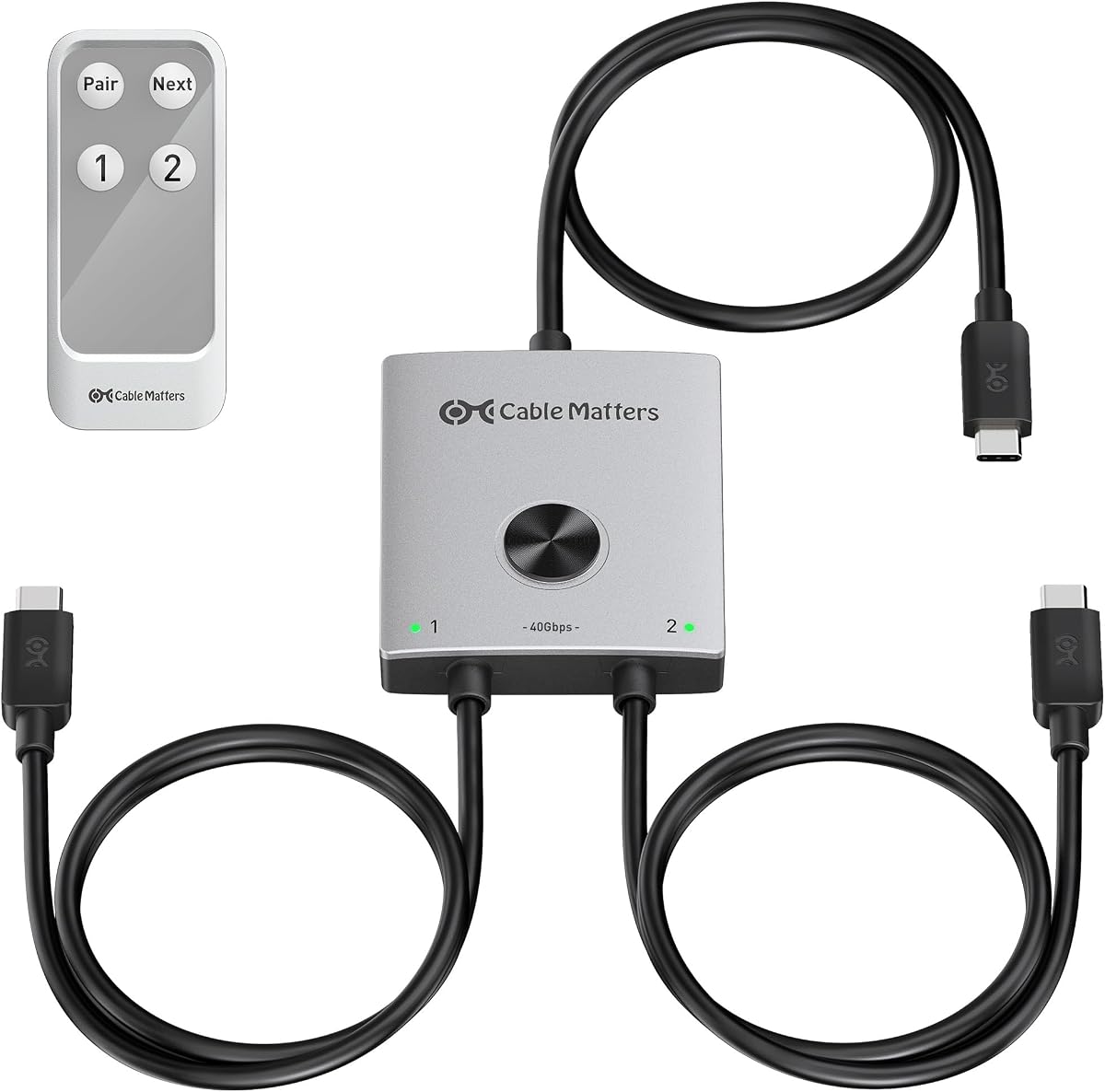
This model leads the pack with exceptional performance for modern USB-C laptops. It delivers true 40Gbps speeds ensuring no bottleneck for high-resolution displays or fast storage.
We may earn a commission when you buy through this link, at no additional cost to you.
Its support for Thunderbolt 4 and USB4 standards means it handles the most demanding laptops on the market. The pass-through charging up to 140W ensures your laptop stays powered while switching.
While it requires specific cable conditions and costs more than basic switches the performance gap justifies the investment for professionals. It avoids the bottlenecks found in lower-tier USB-C switches.
If you need maximum speed and reliability for dual laptop setups this is the top recommendation. It is ideal for users with high-end docked workflows who cannot compromise on bandwidth.
The 40Gbps throughput ensures file transfers and peripheral communication remain fast even when connected to complex docking stations.
Supporting up to 140W pass-through means even power-hungry mobile workstations can charge reliably without needing a separate brick.
We may earn a commission when you buy through this link, at no additional cost to you.
This premium unit replaces multiple devices by combining a KVM switch with a full docking station. It allows one laptop and one desktop to share three high-resolution displays.
We may earn a commission when you buy through this link, at no additional cost to you.
The inclusion of an 8K output channel means future-proofing for ultra-high-resolution monitors. Shared Ethernet ensures network tasks continue even when you switch control to another computer.
The complexity of managing three monitors and multiple inputs may be overkill for simple users. However for power users requiring massive screen real estate this solution is unmatched.
Buy this if you need a complete hub that handles video data networking and power in one place. It saves desk space by eliminating separate docks and hubs.
Connecting three monitors expands your workspace significantly allowing for complex workflows like video editing or multi-monitor trading setups.
The shared Ethernet port keeps downloads and updates running on the background computer while you focus on the active machine.
We may earn a commission when you buy through this link, at no additional cost to you.
This budget-friendly option is perfect for users who need basic dual-computer switching without spending much. It supports 4K video and has plenty of USB ports for peripherals.
We may earn a commission when you buy through this link, at no additional cost to you.
The remote control is a nice touch for convenience allowing you to switch without reaching behind the desk. It works reliably for office work and basic media viewing.
It lacks USB-C power delivery which limits it to older laptops or those with separate chargers. It also only supports a single monitor which restricts multitasking compared to higher-end options.
If you are on a tight budget this is the most effective way to share a monitor and keyboard between two PCs. It gets the job done without unnecessary features.
The price point makes it accessible for students or home users who want to reduce hardware clutter without spending a fortune.
Having a wired remote lets you place the switch anywhere on the desk while keeping the button easily accessible for quick changes.
We may earn a commission when you buy through this link, at no additional cost to you.
This switch stands out by supporting four different computers with a mix of HDMI DisplayPort and USB-C inputs. It is ideal for diverse environments where different laptops are used.
We may earn a commission when you buy through this link, at no additional cost to you.
The ability to handle two monitors while switching between four inputs is rare at this price point. The 100W PD charging ensures your laptop gets power during use.
Managing cables for four computers can become cluttered if not organized carefully. External power is required which adds another item to your desk setup.
Choose this if you share a workspace with multiple colleagues or need to test on different systems regularly. It offers great versatility for complex setups.
Accepting USB-C HDMI and DP inputs means you can connect laptops and desktops without needing extra adapters for each device.
Extending your workspace across two screens while switching between four machines maximizes productivity for developers and testers.
We may earn a commission when you buy through this link, at no additional cost to you.
Designed for laptops with strong graphics capabilities this unit supports three external screens simultaneously. It uses MST to split the video signal across multiple displays.
We may earn a commission when you buy through this link, at no additional cost to you.
The USB 3.1 Gen2 ports provide fast data speeds which is crucial for external drives and high-performance peripherals. 100W charging keeps your laptop powered efficiently.
Mac users should note that extended triple displays are not supported due to OS limitations. This switch works best with Windows laptops that have multiple display ports.
If you need maximum screen real estate from a single laptop this is a strong choice. It bridges the gap between a simple switch and a full docking station.
MST technology allows a single video output to drive multiple monitors providing flexibility for complex workstation setups.
The 10Gbps USB ports ensure that external hard drives transfer files quickly without bottlenecking your workflow.
We may earn a commission when you buy through this link, at no additional cost to you.
This docking station style switch is designed for professional users who need robust connectivity. It supports dual 4K displays with high-speed data transfer.
We may earn a commission when you buy through this link, at no additional cost to you.
The Ethernet sharing feature ensures both laptops remain on the network even when one is inactive. This is critical for cloud sync or background tasks.
MacBooks are limited to mirrored displays which reduces the utility for Apple users. For Windows users however it offers a complete workstation solution.
Consider this if you need a clean desk with shared peripherals and network access. It combines the convenience of a dock with the flexibility of a KVM.
A single network cable provides internet to both laptops ensuring stable connections without needing two Ethernet ports.
Having an SD slot built in means you can transfer photos directly without carrying an external adapter.
We may earn a commission when you buy through this link, at no additional cost to you.
This model boasts the highest rating in our list due to its reliability and feature set. It supports 8K resolution which is a huge benefit for creative professionals.
We may earn a commission when you buy through this link, at no additional cost to you.
It functions as a full docking station meaning you can connect your laptop via one cable and gain access to monitors USB audio and network.
The need for specific HDMI and DisplayPort cables means you may need to check your existing cables before buying. This is a minor cost for the performance gains.
If you want the best rated solution for high resolution workflows this is an excellent choice. It balances power and ease of use perfectly.
The ability to drive 8K monitors ensures you can utilize the latest high-resolution displays for detailed editing work.
With a 4.9 rating users consistently praise its reliability and seamless switching performance in daily use.
We may earn a commission when you buy through this link, at no additional cost to you.
This unit offers a balanced set of features for the price. It supports dual monitors and provides extensive USB connectivity for various peripherals.
We may earn a commission when you buy through this link, at no additional cost to you.
The 11-in-1 design means you can connect audio SD cards and USB devices all in one place. The 100W PD helps keep laptops charged during long sessions.
While it handles office work well gaming features like FreeSync are not fully supported. Mac users will find it limited to mirrored displays.
It is a solid choice for hybrid workers who need a reliable dock that switches between laptops. It simplifies your desk significantly.
With 11 ports you have everything needed for audio video data and network without needing additional adapters.
100W pass-through ensures your laptop charges while you work removing the need for a second charger.
We may earn a commission when you buy through this link, at no additional cost to you.
This switch is ideal for users who prefer DisplayPort connectors for higher bandwidth needs. It supports 8K resolution which is great for future monitors.
We may earn a commission when you buy through this link, at no additional cost to you.
The included remote makes switching easy and the USB ports are sufficient for keyboards and mice. It is straightforward to install.
You must buy a specific DP 1.4 cable which adds to the cost. It also only supports one monitor so it is not for multitasking setups.
Buy this if you have high refresh rate monitors or need DisplayPort inputs. It is a solid dedicated switch for single screen setups.
DisplayPort ensures smoother motion for gaming or fast-paced workflows with high refresh rate monitors.
The desktop remote lets you switch inputs from your chair which adds comfort to your workspace.
We may earn a commission when you buy through this link, at no additional cost to you.
This switch offers high speed data transfer in a small package. It supports 20Gbps which is fast enough for most modern storage devices.
We may earn a commission when you buy through this link, at no additional cost to you.
The wireless remote is a unique feature that adds convenience compared to wired remotes. It also supports high wattage charging for laptops.
Dell docks and certain USB-C hubs may not work well due to cable length constraints. It is important to check compatibility before buying.
Choose this if you need a portable and fast switch for travel or small desks. It is a versatile option for mobile professionals.
A wireless remote allows you to switch devices without reaching under the desk which is very convenient.
Its compact size makes it easy to carry in a laptop bag for work on the go.
We may earn a commission when you buy through this link, at no additional cost to you.
Selecting the right KVM switch for your laptop requires understanding your video needs power requirements and peripheral connectivity. This guide breaks down the key factors to ensure you get the best performance.
Ensure the switch supports your monitor resolution and refresh rate. HDMI and DisplayPort switches vary in capability so verify if you need 4K or 8K support.
Look for switches with the right video ports for your laptop. If you have a USB-C laptop prioritize switches with USB-C input for single-cable convenience.
USB bandwidth affects how fast your external drives and peripherals communicate with the computer. USB 3.0 is standard but USB 3.1 or 3.2 offers faster speeds for large file transfers.
Higher bandwidth is crucial if you use external SSDs or high-performance webcams. Slower USB 2.0 switches may cause lag with heavy peripheral usage.
Many modern laptops rely on USB-C power delivery to stay charged while in use. A KVM switch with PD pass-through allows your laptop to charge without a separate cable.
Check the wattage supported to ensure it meets your laptop requirements. Look for at least 60W for basic devices or 100W for high-performance laptops.
Decide whether you need single or multi-monitor support. Some KVM switches only allow one screen while others support dual or triple displays for better productivity.
Multi-monitor support requires more ports and higher video bandwidth. Ensure your laptops can drive multiple screens if you choose a multi-monitor switch.
Look for convenient switching methods like physical buttons remotes or hotkeys. Wired remotes are common but wireless options add more flexibility.
Ease of switching impacts workflow efficiency. Choose a method that allows you to change computers quickly without interrupting your tasks.
Confirm that the switch works with your operating system. Most switches support Windows and macOS but specific features like extended displays may be limited on Mac.
Some switches use MST for multiple screens which is not fully supported on all Mac models. Check reviews for specific OS behavior if you are on macOS.
KVM docking stations combine a switch with additional ports like Ethernet audio and SD card readers. This reduces cable clutter by centralizing connectivity.
If you need network sharing or audio jacks prioritize a docking switch over a basic model. It simplifies your setup by reducing extra hardware.
High-resolution video often requires specific high-speed cables. Check if cables are included or must be bought separately to avoid compatibility issues.
Ensure the cables are short enough to avoid signal loss. High bandwidth signals like 4K or 8K degrade quickly over long cable distances.
Begin by connecting your monitors and peripherals to the switch before plugging in your computers. This ensures the switch detects devices correctly during initialization.
Use the remote or front button to switch between computers. Allow a few seconds for the screen to adjust especially when moving between high and low resolutions.
Keep your switch well ventilated and free of dust to maintain performance. High-end models generate some heat so avoid covering them with cables or paper.
KVM support means you can control multiple computers from a single keyboard video and mouse setup. For laptops this allows seamless switching between work and personal devices on one desk.
Yes but you need a switch with USB-C input that supports video. Check for DP Alt Mode support and ensure the switch offers enough power delivery for your laptop.
Most modern KVM switches preserve high-quality video up to 4K or 8K. Ensure the switch matches your monitor resolution to avoid compression or signal loss.
This happens if the switch does not support power delivery or lacks a PD port. Check the wattage specs to ensure the switch can supply enough power for your laptop.
Yes certain docking style KVM switches support triple monitors. Ensure your laptop supports MST or extended displays to utilize all three screens effectively.
Most KVM switches are plug and play and do not need drivers. This simplifies installation and ensures compatibility across different operating systems.
Our top pick the Cable Matters 40Gbps switch offers the best speed for modern laptops. For high resolution needs the AV Access 8K model provides premium docking features.
Prioritize switches that match your laptop ports and charging needs. A compatible KVM switch streamlines your workflow by reducing cable clutter and switching time.
Always verify current prices and availability as these change often. Choose the model that best fits your specific setup and performance requirements today.