
Canon PIXMA TS6520
4.2Editor score
Compact design
OLED display
AirPrint support
Finding the right all in one printer for MacBook Air requires careful consideration of compatibility, speed, and quality. Home users need reliable devices that handle documents and photos efficiently without cluttering small workspaces.
We evaluated ten top-rated models based on wireless capabilities, ink efficiency, and feature sets. Each printer was assessed for its ability to integrate smoothly with macOS and mobile ecosystems for streamlined productivity.
Each selection highlights key strengths and potential trade-offs to help you choose wisely. Prices and availability fluctuate frequently, so verify current deals before purchasing to ensure the best value for your specific needs.
4.2Editor score
3.9Editor score

4.3Editor score
As an Amazon Associate we earn from qualifying purchases.
This comparison table provides a side-by-side overview of all ten models. It highlights essential specifications like connectivity options, paper capacity, and unique features to help you make an informed decision quickly.




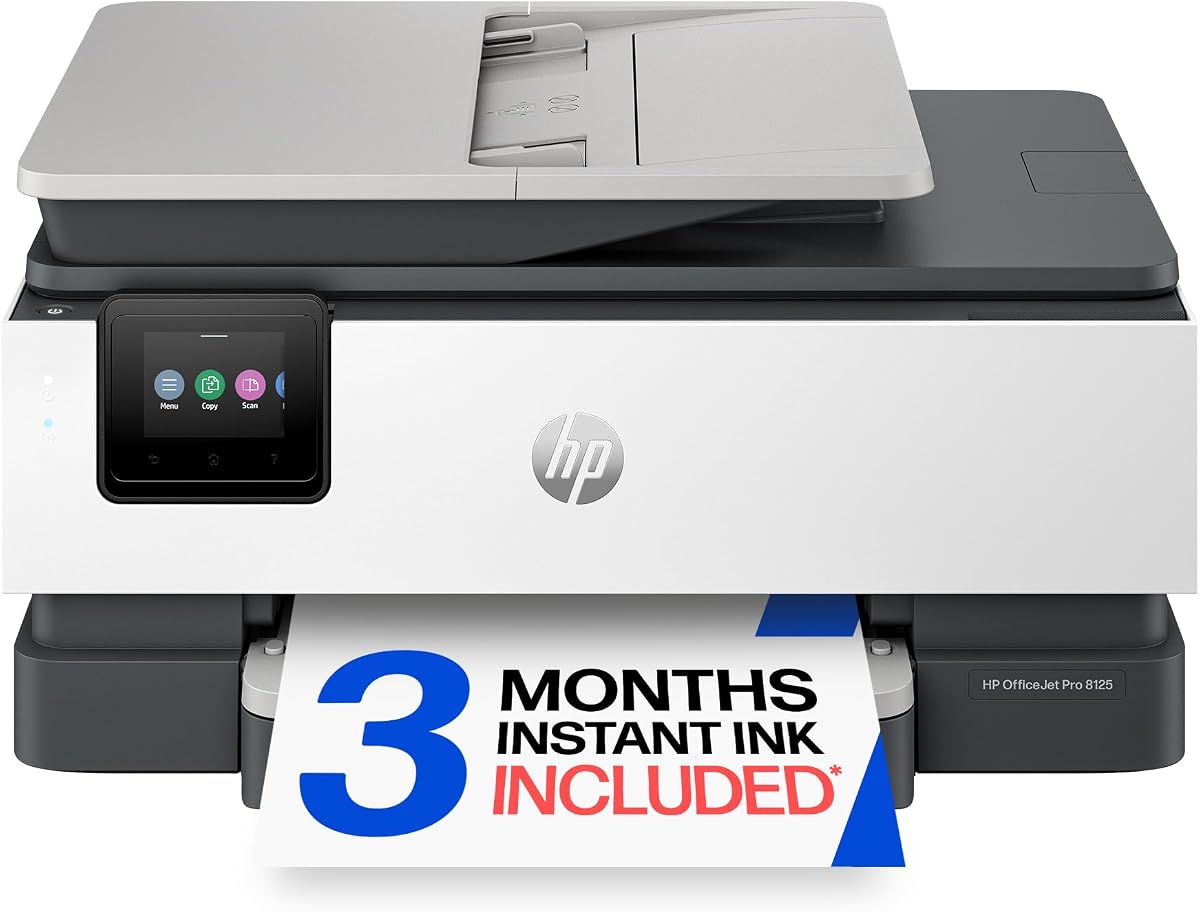
The HP OfficeJet Pro 8125 stands out as a top contender for MacBook Air users seeking professional quality. It combines fast printing with intelligent features like HP AI that optimize layouts for perfect results every time.
We may earn a commission when you buy through this link, at no additional cost to you.
Its dual-band Wi-Fi ensures stable connections to your Mac without interference. The large touchscreen simplifies navigation, making it easy to manage print jobs or scan documents directly from the device.
While the cartridge locking mechanism limits third-party ink usage, the Instant Ink trial helps manage costs initially. The high speed justifies this trade-off for users prioritizing efficiency over long-term ink savings.
This printer is ideal for home offices needing speed and reliability. If you value quick setup and advanced formatting tools, the 8125 delivers the performance required for daily professional tasks on your MacBook Air.
HP AI removes unwanted content from web pages to ensure prints are exactly what you need.
Dual-band Wi-Fi automatically resolves connection issues for seamless printing from your Mac.
We may earn a commission when you buy through this link, at no additional cost to you.
The Epson EcoTank ET-2903 redefines value with its supertank system. Users get enough ink for up to three years, drastically reducing ongoing costs and waste compared to traditional cartridge models.
We may earn a commission when you buy through this link, at no additional cost to you.
Its Heat-Free technology ensures the printhead lasts the life of the printer, improving reliability. The high resolution allows for stunning photo prints that look vibrant and detailed on any media.
Print speeds are slower than competitors, which might frustrate large jobs. However, for home users prioritizing cost efficiency and eco-friendly design, this trade-off is easily acceptable for most daily tasks.
Choose this printer if you want minimal maintenance and maximum savings. The refillable tanks make it a sustainable choice for MacBook Air users who print frequently and value long-term reliability.
Zero cartridge waste makes this model an eco-friendly choice for environmentally conscious users.
Uniquely keyed bottles prevent mix-ups during refilling for mess-free ink replacement.
We may earn a commission when you buy through this link, at no additional cost to you.
The Canon PIXMA TS6520 is a budget-friendly gem for small spaces. It fits easily on desks and offers a surprisingly large OLED display for monitoring ink levels and printer status at a glance.
We may earn a commission when you buy through this link, at no additional cost to you.
Setup is straightforward for Mac users thanks to AirPrint support. The hybrid ink system delivers sharp text and vivid colors, making it perfect for both homework assignments and creative photos.
Lacking an automatic document feeder limits multi-page scanning. For users who rarely print more than a few pages at once, this limitation keeps the price low without sacrificing essential functionality.
This model is perfect for students or light home users on a budget. If you need a reliable, compact printer that integrates seamlessly with macOS without breaking the bank, the TS6520 is an excellent choice.
The intuitive OLED screen simplifies settings adjustments and status checks effortlessly.
Seamless printing from Mac and iOS devices requires no additional software installation.
We may earn a commission when you buy through this link, at no additional cost to you.
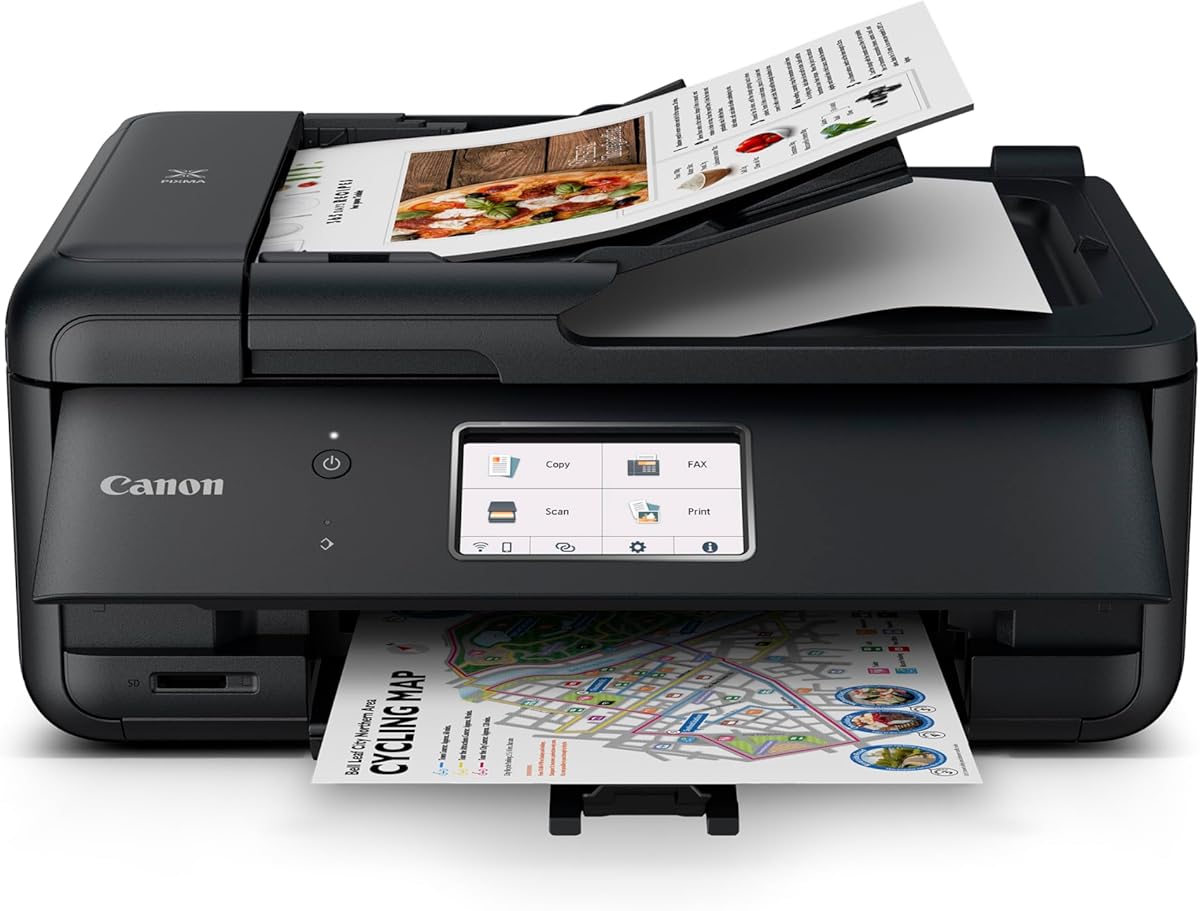
The Canon PIXMA TR7120 offers a balanced mix of features for hybrid workers. Its auto document feeder is a standout feature for managing multi-page documents quickly without manual feeding.
We may earn a commission when you buy through this link, at no additional cost to you.
Dual-band Wi-Fi ensures consistent connection to your MacBook Air. The intuitive control panel and quick setup process mean you can start printing and scanning almost immediately after unboxing.
Photo quality is decent but not exceptional compared to dedicated photo printers. For general office documents and occasional family photos, however, the vibrant output meets most household needs effectively.
This printer is a top choice for users needing document handling. The convenience of scanning multi-page reports combined with compact design makes it ideal for shared home office environments.
Automatic document feeder allows quick scanning of reports without manual sheet loading.
Dual-band support provides stable connectivity for smooth printing from any device.
We may earn a commission when you buy through this link, at no additional cost to you.
The HP Envy 6155 is designed for homes that need both documents and photos. Its True-to-Screen technology ensures prints match what you see on your MacBook Air display with vibrant colors.
We may earn a commission when you buy through this link, at no additional cost to you.
HP AI helps optimize email and web prints to avoid wasted paper. The intuitive touchscreen allows easy navigation, making it simple to manage daily tasks like scanning or copying quickly.
Color printing speed is slower compared to document-focused models. If your primary use is text documents and homework, this difference is minimal, but high-volume photo users might find it limiting.
This model suits families with mixed printing needs. If you want a printer that looks good on your desk and delivers high-quality visuals, the Envy 6155 is a strong contender for home offices.
HP P3 technology ensures prints match on-screen colors accurately for photos.
AI automatically removes unwanted content from web pages for clean layouts.
We may earn a commission when you buy through this link, at no additional cost to you.
The Brother Work Smart 1360 offers impressive speed at a budget price. It handles black documents efficiently, making it a practical choice for home offices that prioritize throughput over complex features.
We may earn a commission when you buy through this link, at no additional cost to you.
Cloud app integration allows printing directly from services like Google Drive or Dropbox. This flexibility is perfect for modern workflows where documents often live online rather than on a local drive.
Build quality is functional but feels less premium than competitors. While it gets the job done reliably, users expecting robust hardware might find it lacking for heavy daily usage or demanding tasks.
This printer is great for users on a tight budget. If you need fast document printing and basic scanning capabilities without spending much, the 1360 provides excellent value for simple home office setups.
Direct integration with cloud apps streamlines workflows for remote workers.
The Brother Mobile Connect app simplifies onscreen menu navigation easily.
We may earn a commission when you buy through this link, at no additional cost to you.
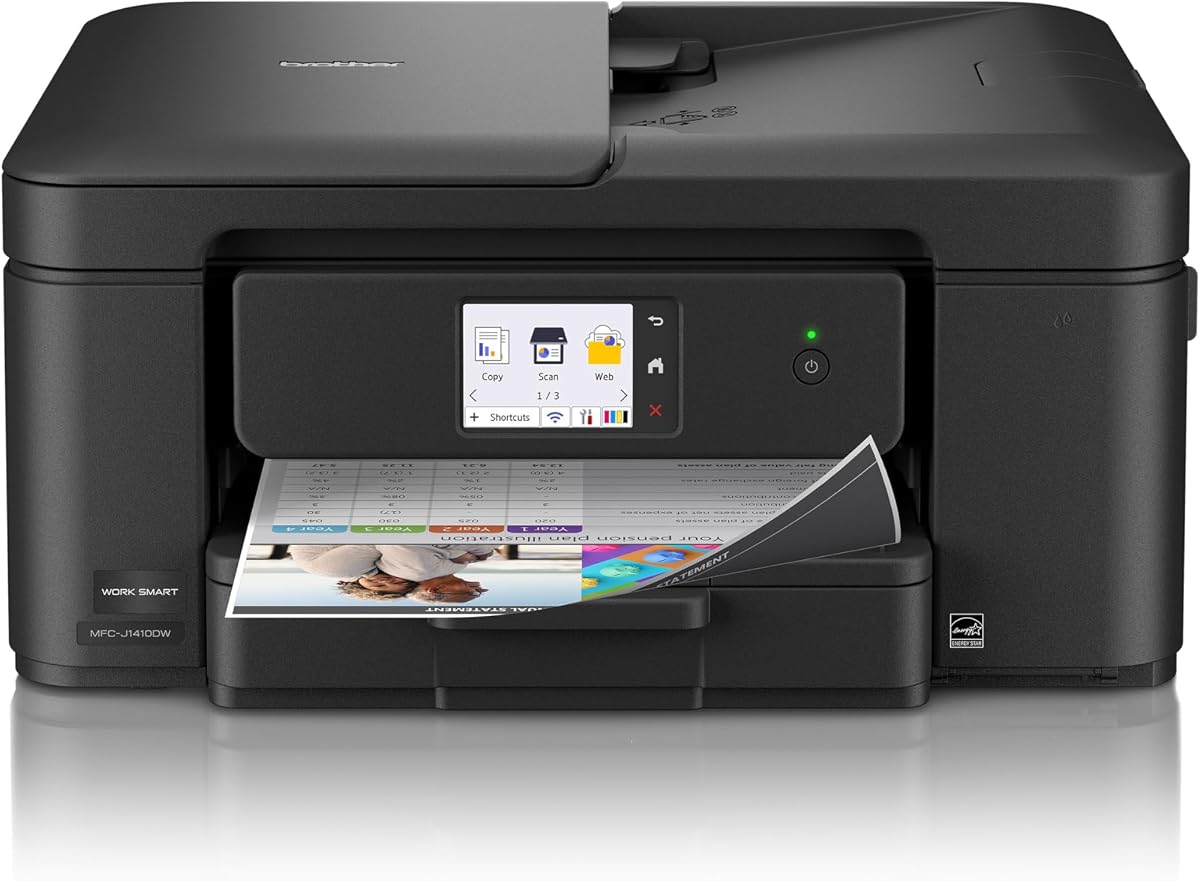
The Brother Work Smart 1410 bridges the gap between home and small office needs. Its large color touchscreen simplifies complex tasks, making it feel more professional than typical consumer printers.
We may earn a commission when you buy through this link, at no additional cost to you.
Cloud integration is seamless, allowing direct access to files from various services. This feature is particularly useful for users managing multiple accounts who need quick access to documents without downloading first.
The automatic duplex feature saves paper significantly. While it requires a subscription trial for some features, the upfront value of speed and connectivity justifies the investment for small businesses.
This model is perfect for small home offices needing reliability. If you need a device that handles daily administrative tasks efficiently with minimal friction, the 1410 delivers consistent performance.
The 2.7 inch color display makes navigation intuitive for all users.
Automatic two-sided printing reduces paper usage for eco-friendly workflows.
We may earn a commission when you buy through this link, at no additional cost to you.
The HP OfficeJet 3830 stands out for its smart home integration. Compatible with Alexa, it allows voice commands for tasks like checking status or printing, adding convenience to your tech ecosystem.
We may earn a commission when you buy through this link, at no additional cost to you.
Instant Ink compatibility ensures you never run out unexpectedly. The subscription model helps track usage and delivers ink before you run out, saving time for busy professionals focused on other tasks.
Print speeds are older and slower compared to modern models. While it is reliable for occasional printing, users needing high throughput may find it frustrating when handling large batches of documents.
Choose this if you value smart features. If you already use Alexa and need basic printing with easy ink management, the 3830 is a practical choice for budget-conscious smart home users.
Alexa integration allows hands-free status checks and ordering supplies easily.
Automatic monitoring delivers ink before you run out to save time.
We may earn a commission when you buy through this link, at no additional cost to you.
The Canon PIXMA TR8620a is a powerhouse for home offices needing fax. It combines high capacity with smart features, ensuring that even complex tasks like faxing remain straightforward and efficient for users.
We may earn a commission when you buy through this link, at no additional cost to you.
Alexa smart reorders eliminate manual tracking of supplies. By linking your printer to Alexa, you ensure consistent inventory without manual checks, which is perfect for high-volume environments needing reliability.
The high capacity tray reduces refill frequency significantly. While ink costs remain higher than some competitors, the convenience and professional features justify the expense for serious users with regular print jobs.
This printer suits users needing traditional office tools. If you require faxing and large paper handling without moving to a corporate device, the TR8620a offers an excellent balance of capability and ease of use.
Alexa automatically manages ink levels to ensure continuous printing operations.
Built-in fax support simplifies communication for home offices needing traditional methods.
We may earn a commission when you buy through this link, at no additional cost to you.
The Canon PIXMA TR4720 is a no-fuss printer for light home use. It offers essential features like faxing and duplex printing at a price point that is accessible for students or small families.
We may earn a commission when you buy through this link, at no additional cost to you.
Alexa smart reorder helps maintain ink supplies seamlessly. This simple integration ensures you do not face unexpected downtime, which is valuable for users who rely on consistent access to printing resources.
Print speeds are modest compared to high-performance models. For occasional homework printing or family photos, this is not a major drawback, but heavy users should consider faster alternatives for efficiency.
This is the best choice for budget buyers. If you need basic capabilities like faxing and scanning without a high investment, the TR4720 provides reliable entry-level performance for everyday tasks.
Low cost makes this model accessible for users with limited budgets.
Smart reorder functionality simplifies supply management for all users.
We may earn a commission when you buy through this link, at no additional cost to you.
Selecting the right printer involves understanding your workflow needs. This guide breaks down key factors like connectivity, ink systems, and features to ensure a seamless experience with your MacBook Air.
Ensure the printer supports dual-band Wi-Fi for stable connections with your Mac. Reliable connectivity prevents interruptions during critical printing tasks and allows seamless remote access from various devices.
Look for printers that integrate well with AirPrint or have dedicated Mac apps for better performance.
Choose between traditional cartridges or ink tank systems based on your printing volume. Tank systems offer lower costs per page for high-volume users, while cartridges are better for occasional low-volume printing needs.
Consider the availability of ink refills and subscription options to manage ongoing costs effectively.
Evaluate the pages per minute (ppm) ratings against your typical usage needs. Faster printers save time for large documents but often come at a higher price point that may not be necessary for all users.
Prioritize models that deliver sharp text for documents and vibrant colors for photos to meet your quality expectations.
Determine if you need scanning, copying, or faxing features integrated into the device. Having these functions combined saves desk space but might add complexity to your workflow if used rarely.
An automatic document feeder is crucial for scanning multi-page documents quickly and efficiently without manual feeding.
Measure your available desk space to find a printer that fits comfortably without cluttering your workspace. Compact designs are ideal for small home offices but may limit paper capacity significantly.
Choose a model with a design that matches your aesthetic preferences for a cohesive look in your office environment.
Check for compatibility with cloud services like Google Drive or Dropbox for direct printing capabilities. This feature is essential for modern workflows where documents are often stored online rather than locally.
Mobile app support allows you to print directly from your iPhone or iPad for greater flexibility and convenience.
Consider the long-term reliability and warranty terms offered by the manufacturer. Durable models reduce downtime and repair costs, which is vital for users who depend on their printer for daily work.
Look for printers with self-cleaning features and easy access to consumables to minimize maintenance time.
Calculate the total cost including the initial purchase price and ongoing ink expenses. Some printers are cheap upfront but expensive to run, while others require higher initial investment for lower long-term costs.
Evaluate subscription options like Instant Ink to balance convenience with budget constraints over time.
Start by connecting the printer to your MacBook Air via Wi-Fi or USB. Use the built-in printer setup assistant on macOS to detect the device automatically, or download the manufacturer's app for advanced control features.
Keep the printer clean and covered when not in use to protect internal components from dust. Regularly clean the glass scanner surface and the exterior using a soft cloth to prevent smudges or scratches.
Use genuine ink cartridges recommended by the manufacturer to avoid damage to the print heads. Monitor ink levels through the printer dashboard and replace them before they run completely empty to prevent clogging or drying out.
Yes, all listed printers support macOS via AirPrint or official driver apps. They are tested to work seamlessly with recent macOS versions and Apple devices for a smooth printing experience.
Connect your printer to your home Wi-Fi network using its display menu. Then use the printer setup assistant on your Mac to add the device via AirPrint or the manufacturer's utility app.
You need internet for initial setup and cloud features, but local network printing works without external internet. Once configured, you can print over your home Wi-Fi network without external connectivity requirements.
Cartridge printers use small disposable units, while tank printers use refillable bottles with much more ink. Tank systems offer significantly lower costs per page for high-volume printing needs.
Yes, these printers allow scanning documents directly to your Mac via network drivers or apps. You can save the files in formats like PDF or JPEG for easy access and sharing on your device.
Most models in this list support automatic duplex printing for two-sided documents. This feature helps save paper and reduce costs without requiring manual intervention during the printing process.
Our top picks highlight the best options for different needs like speed, cost, and advanced features. Whether you need the speed of the HP OfficeJet Pro 8125 or the savings of the Epson EcoTank, there is a fit for everyone.
Prioritize connectivity and ease of use to ensure the printer fits naturally into your workflow. A seamless experience with macOS and mobile devices will maximize productivity and reduce frustration with daily tasks.
Remember to check current prices and promotions before buying since deals change frequently. Verifying the latest offers ensures you get the best value for your investment in a high-quality printing solution.