
Calibrite Display Plus HL
4.0Editor score
Measures up to 10000 nits
PROFILER software included
Supports HDR and OLED displays
This guide compares the best Colorimeter for Monitor Calibration tools for photographers and video editors seeking accurate color across diverse display
Finding the right Colorimeter for Monitor Calibration is essential for creators who demand precision in their visual work. Whether you edit photos or grade video, accurate screen representation ensures your output matches client expectations and print results reliably.
We evaluated ten top models based on sensor technology, software capabilities, and compatibility with modern displays like OLED and Mini LED. Each product offers unique strengths for different workflows, from basic home setups to professional multi-monitor environments requiring rigorous consistency.
Each pick highlights specific benefits and limitations to help you choose confidently. Note that availability and features may vary over time, so verify current specifications before purchasing. Your investment in calibration protects the integrity of your creative output and professional reputation.
4.0Editor score

4.0Editor score

5.0Editor score
This side-by-side comparison highlights key specifications and capabilities across all ten models to help you identify the tool that fits your specific display technology and workflow needs.



The Calibrite Display 123 offers a streamlined approach to monitor calibration for photographers and content creators seeking reliable color accuracy without complexity. With a solid rating and practical features like a USB C connection, it delivers consistent results for everyday editing tasks.
We may earn a commission when you buy through this link, at no additional cost to you.
Its standout quality lies in the Easy 1 2 3 software workflow which guides users through calibration steps quickly. This reduces the learning curve significantly allowing even novices to achieve professional results. The built-in before and after check confirms improvements visibly ensuring you trust your screen.
While it lacks advanced gamma or white point customization found in higher-end tools, this simplicity is often a trade-off worth accepting for solo creators. The dual display support is particularly useful for multi-screen setups where consistent viewing across both panels matters.
This tool is ideal for photographers who need accurate color for photo editing without needing broadcast-level video grading features. If you value ease of use and affordability alongside dependable performance, the Display 123 is a strong recommendation.
The guided process makes calibration approachable helping you achieve accurate color without complicated settings or technical knowledge.
Support for up to two monitors ensures matching color across a multi-screen workspace ideal for photo and video editing.
We may earn a commission when you buy through this link, at no additional cost to you.
The Calibrite Display Plus HL stands out for its ability to handle ultra-bright and high dynamic range displays including Mini LED and OLED panels. Its advanced HL sensor measures up to 10000 nits ensuring accurate calibration even on the most demanding screens.
We may earn a commission when you buy through this link, at no additional cost to you.
Key strengths include the PROFILER software offering both Basic and Advanced modes with full control over white point and luminance. Broadcast standards like Rec.709 and BT.1886 support make it suitable for professional video workflows requiring precise tone curve management.
The main trade-off is the complexity and cost which may exceed needs for basic photo editing. However, for video editors and colorists needing reliable grading decisions on HDR capable monitors, these features justify the investment.
This device is best suited for professionals working with super bright displays or requiring strict broadcast compliance. If your workflow demands maximum luminance accuracy and advanced calibration control, the Display Plus HL delivers exceptional performance.
The advanced HL sensor measures up to 10000 nits enabling accurate calibration of HDR capable monitors and super bright displays.
Quick Check and Profile Validation help you trust results with consistent highlights and reliable grading decisions across pipelines.
We may earn a commission when you buy through this link, at no additional cost to you.
The Calibrite Creator Kit combines the Display 123 colorimeter with the ColorChecker Passport Video 2 to provide a comprehensive solution for both capture and monitor calibration. With a perfect user rating, it is highly regarded by content creators seeking consistent results.
We may earn a commission when you buy through this link, at no additional cost to you.
Its main strength is enabling dependable color management across cameras and monitors which reduces trial-and-error corrections during post-production. The Passport Video 2 helps set accurate white points and match multiple cameras on set ensuring consistent footage in mixed lighting.
While the monitor side uses the standard 123 model with basic software, the inclusion of capture control adds significant value for hybrid shooters. This makes it a compelling budget choice for those needing both video and photo consistency.
This kit is ideal for videographers and photographers who require professional results from capture through editing. If you want a reliable reference system that simplifies your workflow across devices, the Creator Kit is an excellent recommendation.
Combines monitor calibration with camera profiling to create a consistent capture to edit process reducing color guesswork.
Passport Video 2 verifies exposure and matches multiple cameras giving reliable reference for consistent footage in mixed lighting.
We may earn a commission when you buy through this link, at no additional cost to you.
The datacolor Spyder Calibrator brings modern convenience to monitor calibration with an ambient light sensor that tracks room conditions to adjust display brightness automatically. Its 90 second calibration time ensures you get an accurate starting point quickly.
We may earn a commission when you buy through this link, at no additional cost to you.
A unique strength is the DevicePreview Beta feature which simulates how your photos might look on other devices directly on your calibrated screen. This anticipates color surprises across devices and adds confidence for web and social media work.
The main limitation is that advanced customization options are minimal compared to premium tools which may frustrate power users. However, for most professionals needing quick reliable results with light adaptation, this approach is highly effective.
This tool is ideal for creators who work in varying lighting conditions and want minimal hassle. If you value speed and adaptive calibration with broad support for OLED and mini-LED, the Spyder Calibrator is a solid choice.
Calibration takes only about 90 seconds ensuring an accurate color starting point for viewing and editing efficiently.
Ambient light sensor tracks room light to adjust brightness automatically or warn you to recalibrate based on levels.
We may earn a commission when you buy through this link, at no additional cost to you.
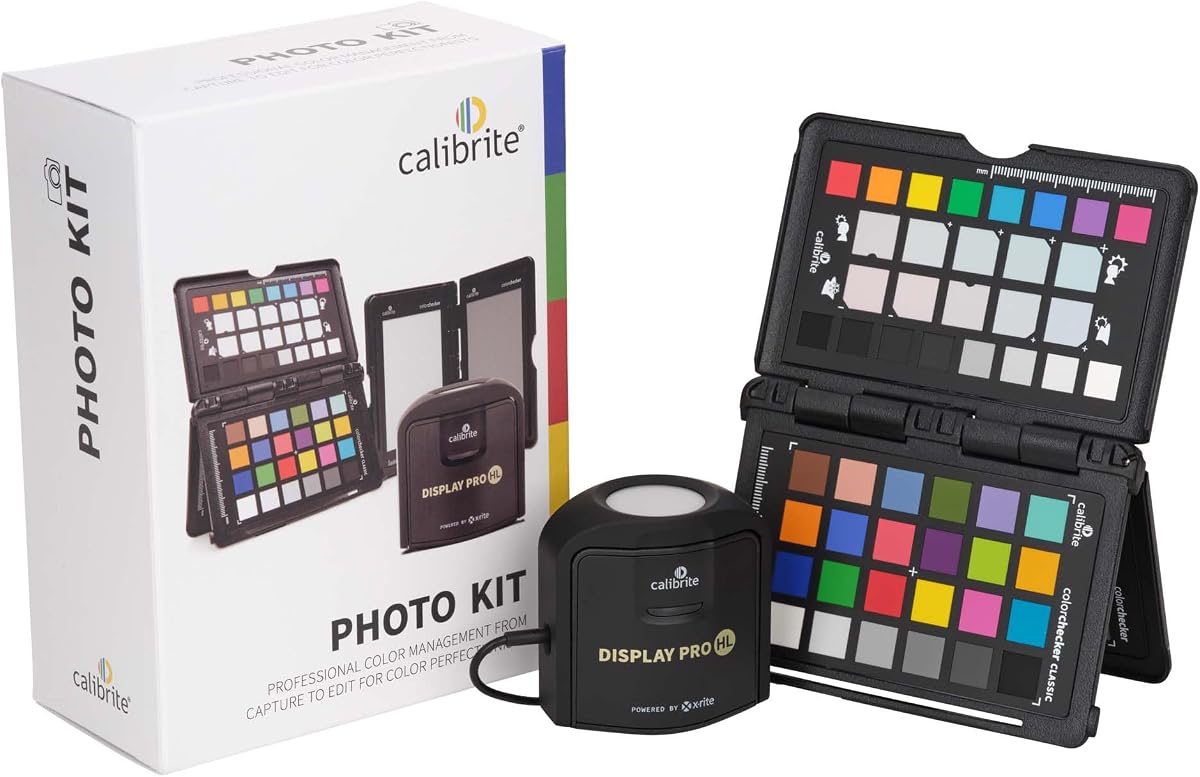
The Calibrite Photo Kit combines a Display Pro HL monitor calibrator with the ColorChecker Passport Photo 2 to address both capture and editing needs. This ensures reliable color results from shooting through final output on your calibrated screen.
We may earn a commission when you buy through this link, at no additional cost to you.
Key strengths include support for custom camera profiles in RAW workflows which reduces unwanted shifts before grading. The Display Pro HL handles modern technologies like Mini LED and Apple XDR ensuring what you see matches final output.
The main trade-off is the investment cost compared to buying tools separately. However, for photographers reducing color guesswork across locations and sessions, the consistency provided by both components justifies the expense.
This kit is ideal for serious photographers needing accurate color management from capture to edit. If you want to start from a neutral baseline and refine color with confidence, the Photo Kit is a strong recommendation.
Combines camera profiling and monitor calibration to create a consistent capture to edit process reducing color guesswork.
Display Pro HL calibrates modern displays so what you see while editing is closer to final output.
We may earn a commission when you buy through this link, at no additional cost to you.
The Calibrite ColorChecker Display Pro offers a robust solution for display profiling with an optical design that ensures high repeatability across different display types. Its physical design includes a rotatable diffuser arm and integrated tripod mount for projector work.
We may earn a commission when you buy through this link, at no additional cost to you.
Key strengths include its versatility for both screen and projector profiling in larger venues. The ability to use the diffuser arm as a stand or cover adds practical value for field work and calibration consistency.
The main trade-off is that it requires separate software licenses like ccProfiler or i1Profiler which may increase total cost. However, for professionals needing consistent results across varied display technologies, this reliability is crucial.
This tool is ideal for AV professionals and creatives requiring accurate color across projectors and monitors. If you need high repeatability and flexibility in your calibration setup, the Display Pro is a strong choice.
Optical design allows for high repeatability on the same display and across different display types.
Integrated tripod mount and rotatable arm enable convenient projector profiling in larger venues.
We may earn a commission when you buy through this link, at no additional cost to you.
The Datacolor Spyder5PRO is designed for serious photographers and designers seeking reliable color accuracy across laptop and desktop displays. With room light monitoring, it ensures you see fine shadow detail and highlights accurately for print work.
We may earn a commission when you buy through this link, at no additional cost to you.
Key strengths include the Before and After evaluation using your own photographs to focus on details important to you. The Display Analysis feature lets you evaluate and compare all your monitors quickly saving time and reducing errors.
The main trade-off is that it is a legacy model which may lack specific optimizations for newer OLED and Mini LED screens. However, for traditional workflows focused on print accuracy, its performance remains robust.
This tool is ideal for photographers prioritizing print results and shadow detail. If you value established reliability and comparison features with room light awareness, the Spyder5PRO is a solid choice.
Determines optimal monitor brightness so you see fine shadow detail and highlights ensuring images match prints.
Evaluate calibration results using your own photographs to focus on details that are important to you.
We may earn a commission when you buy through this link, at no additional cost to you.
The ASUS ProArt CaliContrO offers a 3-in-1 function as colorimeter, Display OSD control, and ASUS Dial integration. It measures up to 10000 nits supporting HDR and modern displays with both hardware and software calibration.
We may earn a commission when you buy through this link, at no additional cost to you.
Key strengths include the ability to control Display OSD settings directly and integrate shortcuts for creator software. This reduces friction during workflow and provides precise control when editing or grading content on compatible monitors.
The main trade-off is the low user rating which suggests software reliability issues or compatibility challenges. Potential buyers should verify current driver status before relying on it for critical professional work.
This tool is ideal for ASUS ProArt monitor users seeking deep integration. If you prioritize hardware calibration and physical controls on your desk, the CaliContrO offers unique features worth investigating.
ASUS Dial provides customize shortcuts for easy precise control of your creator software during editing.
5-way navigator provides intuitive Display OSD control accessible within reach of your hand.
We may earn a commission when you buy through this link, at no additional cost to you.
The Datacolor Spyder4Pro offers automated color and brightness calibration with double-shielded color filters for closer match to CIE standards. It supports single sensor use across multiple displays for consistent results.
We may earn a commission when you buy through this link, at no additional cost to you.
Key strengths include improved accuracy and stability over previous generations with average accuracy up 26% and unit consistency 19% better. The ReCAL feature makes quick re-calibration easy to compensate for changes over time.
The main trade-off is that it is a legacy model with limited support for newer display technologies and modern software workflows. However, for users with older setups needing reliable basic calibration, it remains functional.
This tool is ideal for budget-conscious users needing basic calibration reliability. If you work with older displays and need consistent color over time, the Spyder4Pro is a practical option.
Fourth-generation Spyders have double-shielded color filters for even closer match to CIE color standards.
The ReCAL feature makes it quick and easy to recalibrate your display to compensate for changes over time.
We may earn a commission when you buy through this link, at no additional cost to you.
The Datacolor Spyder X Pro features a groundbreaking lens-based color engine providing higher color accuracy for multiple monitors. It is designed to be intuitive for first-time users while offering wizard workflows and predefined targets.
We may earn a commission when you buy through this link, at no additional cost to you.
Key strengths include room-light monitoring for automatic profile changing and SpyderProof functionality which shows differences using your own images. Calibration takes just a minute or two ensuring quick precision without hassle.
The main trade-off is limited advanced customization compared to premium tools which may restrict complex workflows. However, for creators needing reliable accuracy and straightforward operation, it delivers consistently.
This tool is ideal for first-time users or casual creators seeking color precision. If you want a quick reliable process with evaluation tools and multi-monitor support, the Spyder X Pro is a strong choice.
Groundbreaking lens-based color engine provides a higher level of color accuracy for multiple monitors.
Calibrating your monitor to achieve color precision is quick and easy taking just a minute or two.
We may earn a commission when you buy through this link, at no additional cost to you.
Selecting the right colorimeter depends on your display technology, workflow complexity, and budget. Understanding key factors ensures you invest in tools that provide lasting value and accurate results.
Modern displays like OLED, Mini LED, and XDR panels require colorimeters capable of measuring extreme luminance and wide color gamuts. Ensure the device supports your specific panel type to avoid inaccurate calibration results.
Verify compatibility with HDR and high-brightness screens before purchasing to ensure reliable performance across your workflow.
Calibration software determines how much control you have over white point, gamma, and contrast settings. Advanced tools offer customizable targets and validation features while simpler ones guide you through basic steps.
Choose software that matches your expertise level and offers validation tools to confirm accuracy after calibration.
For busy professionals, quick calibration processes minimize downtime. Some models offer rapid workflows under two minutes while others may take longer for deeper analysis and patch testing.
Prioritize speed if you recalibrate frequently but ensure accuracy is not compromised for convenience.
If you work across multiple screens or mix monitors with projectors, ensure the tool supports profiling multiple displays simultaneously. Consistent color across devices is crucial for collaborative workflows.
Look for dual or multi-monitor support to maintain uniformity across all your viewing surfaces.
Lighting conditions change throughout the day affecting perceived color accuracy. Some colorimeters include sensors to measure ambient light and adjust display brightness automatically.
This feature helps maintain consistent results without manual recalibration as room conditions shift.
Hardware calibration stores profiles directly on the display's LUT while software relies on system-level adjustments. Hardware offers greater accuracy and consistency especially for professional video grading.
Choose hardware calibration if your workflow demands highest precision and consistent output across different systems.
For freelancers working on-site, a compact and portable colorimeter with a travel case is essential. Look for durable build quality and lightweight form factors that fit easily in a laptop bag.
A portable design ensures you can maintain calibration standards regardless of workspace location.
Regular software updates ensure compatibility with new operating systems and display technologies. Check manufacturer support policies and community feedback before committing to a specific brand.
Active support extends the lifespan of your investment and protects against obsolescence.
Begin by warming up your monitor for at least 30 minutes to stabilize brightness and color output. Ensure the device is placed on a clean flat surface away from direct light or shadows that could interfere with readings.
Follow the software prompts to position the colorimeter correctly on your screen using any provided hooks or weights. Allow the calibration process to complete without interruption to ensure accurate measurements and profile generation.
Store your colorimeter in its protective case when not in use to avoid dust accumulation or sensor damage. Recalibrate periodically every few weeks or when lighting conditions change significantly to maintain consistent results.
For professional work, calibrate every two to four weeks to maintain accuracy. Frequent use or changing ambient light conditions may require more frequent recalibration. Always check if your software offers scheduled reminders for this task.
Yes, most colorimeters support profiling multiple displays. You will need to calibrate each screen individually to ensure consistency across your workspace. Some tools allow matching color between monitors with a reference profile.
Yes, laptop screens also drift over time and benefit from calibration especially for photo or video editing. Using a colorimeter ensures your mobile workstation matches desktop accuracy for reliable results anywhere.
Calibration adjusts your monitor to a known standard while profiling creates a custom color correction map for your specific display. Both steps are necessary for accurate color management and consistent output.
Hardware calibration stores settings on the monitor and LUT offering greater precision and consistency. It is essential for professional video grading. Software calibration is easier and more affordable for general photo editing needs.
Changes in room lighting affect how you perceive screen brightness and contrast. Tools with ambient sensors help adjust settings dynamically maintaining consistent viewing conditions for accurate editing results.
Some colorimeters include features for projector profiling especially those with tripod mounts or diffuser arms. Check product specs to confirm compatibility with large venue display calibration needs.
Many colorimeters include basic software for free while advanced features may require a license. Evaluate if your workflow needs advanced tools before purchasing. Free alternatives exist but may lack full control.
Selecting the right Colorimeter for Monitor Calibration ensures your creative work reflects true color from capture to output. Our top picks like the Calibrite Display 123 and Display Plus HL deliver reliable results for various skill levels and display technologies.
Prioritize compatibility with your specific monitors and the software features that support your daily tasks. Tools with validation and ambient light tracking offer added confidence for professional consistency across different environments.
Always verify current product availability and specifications before purchasing to ensure the tool meets your latest needs. Investing in proper calibration protects the integrity of your visual work and enhances professional output quality.